Chromecast
Overview
Chromecast is a streaming dongle produced by Google and is used to directly stream contents from users' smartphones as well as control playback of Internet-streamed audio and visual contents on a high-definition television or home audio system through mobile and web apps that support the Google Cast technology. You can use your Mobile, Laptop, Tablets to stream content on Chromecast but streaming Kodi on Chromecast can be a little bit tricky since it is not possible to install Kodi on Chromecast Stick.
Setup
1. Now you have to turn on your TV with the Chromecast and open the downloaded app BubbleUPnP on your smartphones.
2. You have to make sure that your smartphone and Chromecast gets connected to the same WiFi network.
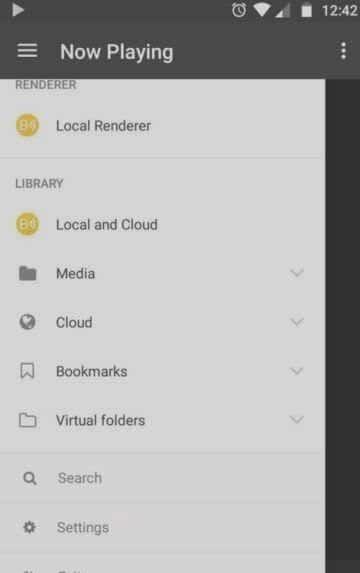
3. Then check that your device gets connected with the Chromecast by just opening the left side menu and then select the device.
4. Moreover, the Chromecast is not compatible with all audio formats and video codecs that used in the list of IPTV player.
5. If you want to convert the format then you have to install an add-on for the application.
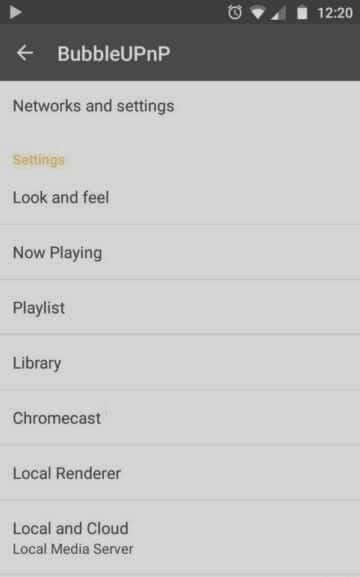
6. In the application, you have to go to the app settings from the menu that is located on the left side of the screen.
7. Now open sub-menu Chromecast.
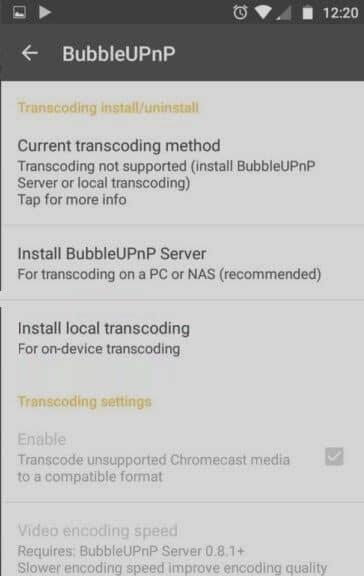
8. Now click on the items that installed for the local transcoding. Now the application will download all the extra part just for performing the transcoding directly from your Smart Phone.
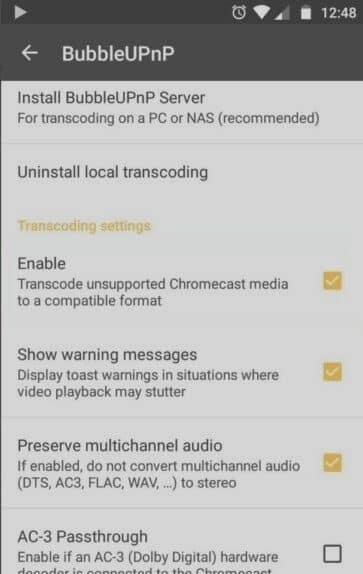
9. Once the installation of the Add-on is done, we have to make sure to tick Enable section of the Transcoding settings.
10. Now you can easily stream IPTV channels on Chromecast. The app allows you to manage the lists IPTV format .m3u8 file, a simple file containing all the information for streaming.
11. Download your M3U file and copy it into your smartphone's storage. Open the app up and go to the item Library and select Internal storage. Now find the M3U file you just copied and open it and wait for your playlist to load.
12. Now you can select any desired channel from the list and begin casting IPTV channels on your chrome cast.